Banks
Banks provide a versatile space for managing media. They can be reordered, renamed, and imported or exported to use in other projects.
The Banks area can be displayed in two views: Table or Grid.
Table View
Table View gives more information about video / audio codecs, resolution, whether hardware acceleration is available on the media and much more.
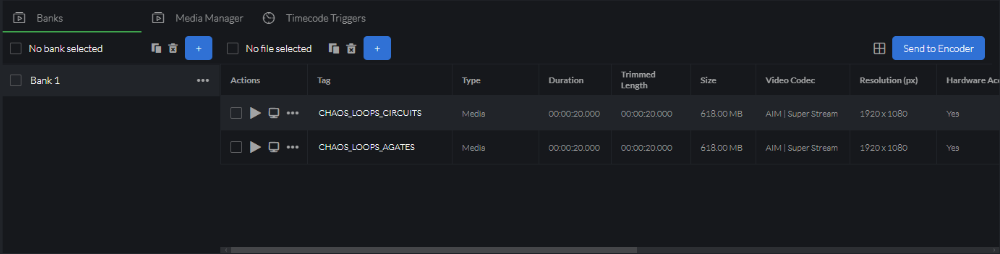
Users can playback elements using the button and preview elements with the Preview button.
Grid View
Grid View allows for easier triggering of clips due to the larger trigger area, thumbnails are shown here and are also stored on the Prism Media Cache.
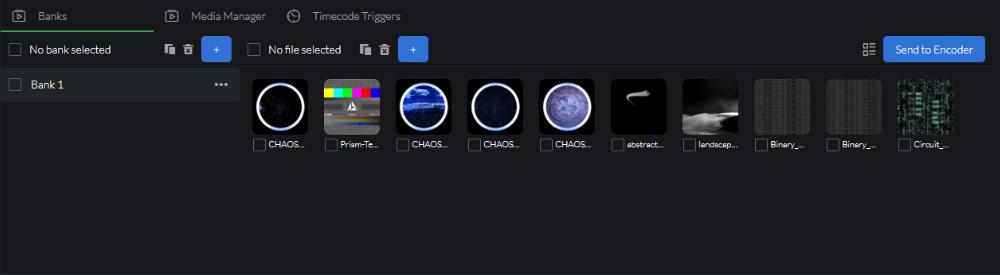
Pressing the + button will add a new Bank, each with its own
Sub Menu
| Item | Description |
|---|---|
| Rename | Renames the Bank |
| Remove | Deletes the Bank and its contents |
| Duplicate | Duplicates the Bank and its contents, including any Bank element property changes |
| Import | Replaces the Bank with the saved Bank. See Import & Export for more details. |
| Export | Saves the Bank to a file. See Import & Export for more details. |
Bank
To add new media to a Bank, select the Bank you wish to add to, and simply drag and drop your files or press the + button.
Bank Element
Bank elements can be rearranged by dragging them around in both table view and grid view.
Element Types
Image
Supports standard image types, such as PNG, JPG, GIF, etc.
Audio
Supports standard audio types, such as MP3, WAV, etc.
Video
Supports natively Avolites AiM, NotchLC, and HAP. Additionally, other standard video codecs such as H264, H265, ProRes, etc., are also supported.
To enhance playback performance, consider transcoding media into Avolites AiM codec. Media can be added to the encoder list by the Send To Encoder button.
NDI® Input
A list of active NDI® sources on the network. Please see both Settings and Preview pages in order to setup and select NDI® Sources.
Prism NDI® sources use the NDI® SDK, a list of all features can be found here.
NDI® is a registered trademark of Vizrt NDI AB.
Live Input
Any connected capture devices on the system. Please see both Settings and Preview pages in order to setup and select Webcam / Capture Devices.
Virtual Return
The Virtual Return element enables one layer in the project to receive the rendered output of surface or another layer.
Network Stream
The Network Stream element allows to receive and display live video streams transmitted over a network. It is typically used to connect to IP cameras, media servers, or other streaming devices that provide real-time video via standard streaming protocols such as RTSP.
Actions
Play
A layer must be selected in order to play elements
Preview
When previewing an element, adjustments can be made to its properties, please see Preview for more details on how this works.
Sub Menu
Opening the on individual elements allows access to the following actions:
| Item | Description |
|---|---|
| Remove | Deletes the element from the Bank |
| Replace | Replaces the element from the Bank with new media |
| Preview | Preview and adjust properties of the Bank element |
| Duplicate | Add a new copy of the Bank element, including all settings |
| Show In Folder | Open file explorer and navigate to the element's media file |
| Copy | Copy the clip controls set within Preview |
| Paste | Paste the clip controls from one bank element to another |
Import/Export
Please see Import/Export for reference.
Note: It is also possible to import Banks by simply dragging and dropping them in the drag and drop area.