Navigation
Prism Player's user interface is organised into three main sections:
Main Menu

In this section it is possible to navigate the application menu, see the Project name, minimize, maximize or close the user interface.
App Logo
Clicking on Prism Player logo will hide all View Tabs, showing the selected Surface in fullscreen.
File
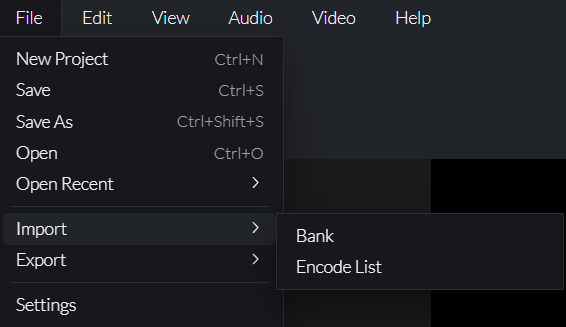
| Item | Description |
|---|---|
| New Project | Resets application state and starts a new project. |
| Save | Saves the current project. |
| Save As | Save a new / replace project file. |
| Open | Open a project file. |
| Open Recent | Select to open from a list of previous projects. |
More information found at Projects Management
| Item | Description |
|---|---|
| Import | Imports either a Bank or Encode List. |
| Export | Exports either a Bank or Encode List. |
More information found at Import/Export
| Item | Description |
|---|---|
| Settings | Navigates to the Settings View. |
Edit

| Item | Description |
|---|---|
| Undo | Undo the last action. Note: Not all features have Undo actions. |
| Redo | Redo the previous action. Note: Not all features have Redo actions. |
View

| Item | Description |
|---|---|
| Enter Fullscreen | Toggle fullscreen mode on to fill the video display also toggle by pressing Fullscreen. Fullscreen mode can be exited either by pressing Minimise at the top right of the screen or by using the Esc button on your keyboard. |
Audio
| Item | Description |
|---|---|
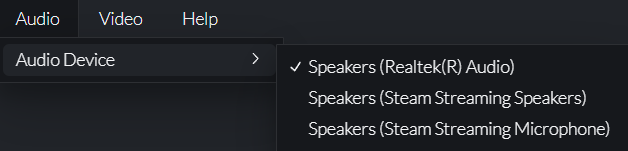
| Audio Device | Sets the audio device output for Prism Player. This can also be configured via Settings. |
Video
| Item | Description |
|---|---|
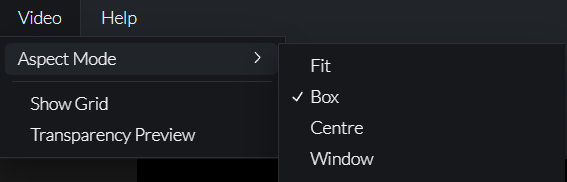
| Aspect Mode | Changes the way the media fills the media player canvas. |
| Show Grid | Displays a reference grid over the media player / layer preview. |
| Transparency Preview | Toggles on the alpha channel showing a checkerboard in the transparent areas. |
Help

| Item | Description |
|---|---|
| Manual | Opens the Desktop Manual app. |
| Support | Shows a pop-up with company details. |
| About | Shows a pop-up with information about Prism Player. |
View Tabs

In this section it is possible to navigate the following app Views:
An underline will give visual feedback of the selected View.
Status Bar
This bar shows the following app informations at a glance.

- App performance metrics - The full performance metrics are shown in the System Info page in Settings.
- Prism Player release version.
- User interface connection status indicator - red when disconnected, green when connected to the Server.
Multi Selection
It is possible to select multiple elements by:
- Ticking element selection boxes.
- Holding Ctrl button and clicking on elements.
- Clicking on an element then Shift clicking another element to range select.
- Pressing Ctrl-A to select all elements in a list.
When multiple Bank Elements or Encode List entries have been selected, a Multiple elements selected orange label is shown in the Controls panel and changes will be applied to every selected element.
Any unchanged values in the Controls panel will initially display those of the first selected element.
If Undo and Redo are permitted, all selected elements will be affected.