Banks
Banks provide a versatile space for managing media. They can be reordered, renamed, and imported or exported to use in other projects.
The Banks area can be displayed in two views: Table or Grid.
Table View
Table View gives more information about video / audio codecs, resolution, whether hardware acceleration is available on the media and much more.
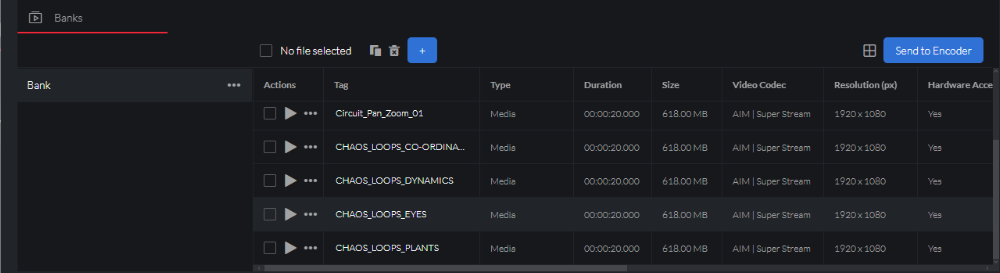
Users can playback elements using the button and preview elements with the Preview button.
Grid View
Grid View allows for easier triggering of clips due to the larger trigger area, thumbnails are shown here and are also stored on the Prism Media Cache.
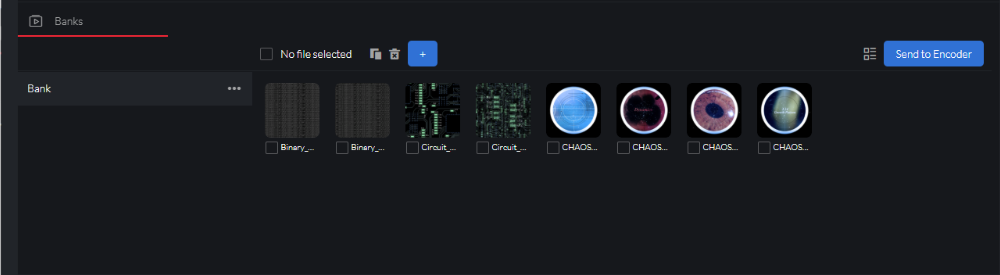
Pressing the + button will add a new Bank, each with its own
Sub Menu
| Item | Description |
|---|---|
| Rename | Renames the Bank |
| Remove | Deletes the Bank and its contents |
| Duplicate | Duplicates the Bank and its contents, including any Bank element property changes |
| Import | Replaces the Bank with the saved Bank. See Import & Export for more details. |
| Export | Saves the Bank to a file. See Import & Export for more details. |
*Note: Only 1 Bank is allowed to be used on Prism Player.
Bank
To add new media to a Bank, select the Bank you wish to add to, and simply drag and drop your files or press the + button.
Bank Element
Bank elements can be rearranged by dragging them around in both table view and grid view.
Element Types
Image
Supports standard image types, such as PNG, JPG, GIF, etc.
Audio
Supports standard audio types, such as MP3, WAV, etc.
Video
Supports natively Avolites AiM, NotchLC, and HAP. Additionally, other standard video codecs such as H264, H265, ProRes, etc., are also supported.
To enhance playback performance, consider transcoding media into Avolites AiM codec. Media can be added to the encoder list by the Send To Encoder button.
Actions
Play
Playing an element will playback on the media player.
Sub Menu
Opening the on individual elements allows access to the following actions:
| Item | Description |
|---|---|
| Remove | Deletes the element from the Bank |
| Replace | Replaces the element from the Bank with new media |
| Duplicate | Add a new copy of the Bank element, including all settings |
| Show In Folder | Open file explorer and navigate to the element's media file |
Import/Export
Please see Import/Export for reference.
Note: It is also possible to import Banks by simply dragging and dropping them in the drag and drop area.